Viewer
The Viewer is a clean, read-only display that shows the active countdown timer alongside an agenda sidebar. It is designed for audience-facing confidence monitors and speaker podium screens.
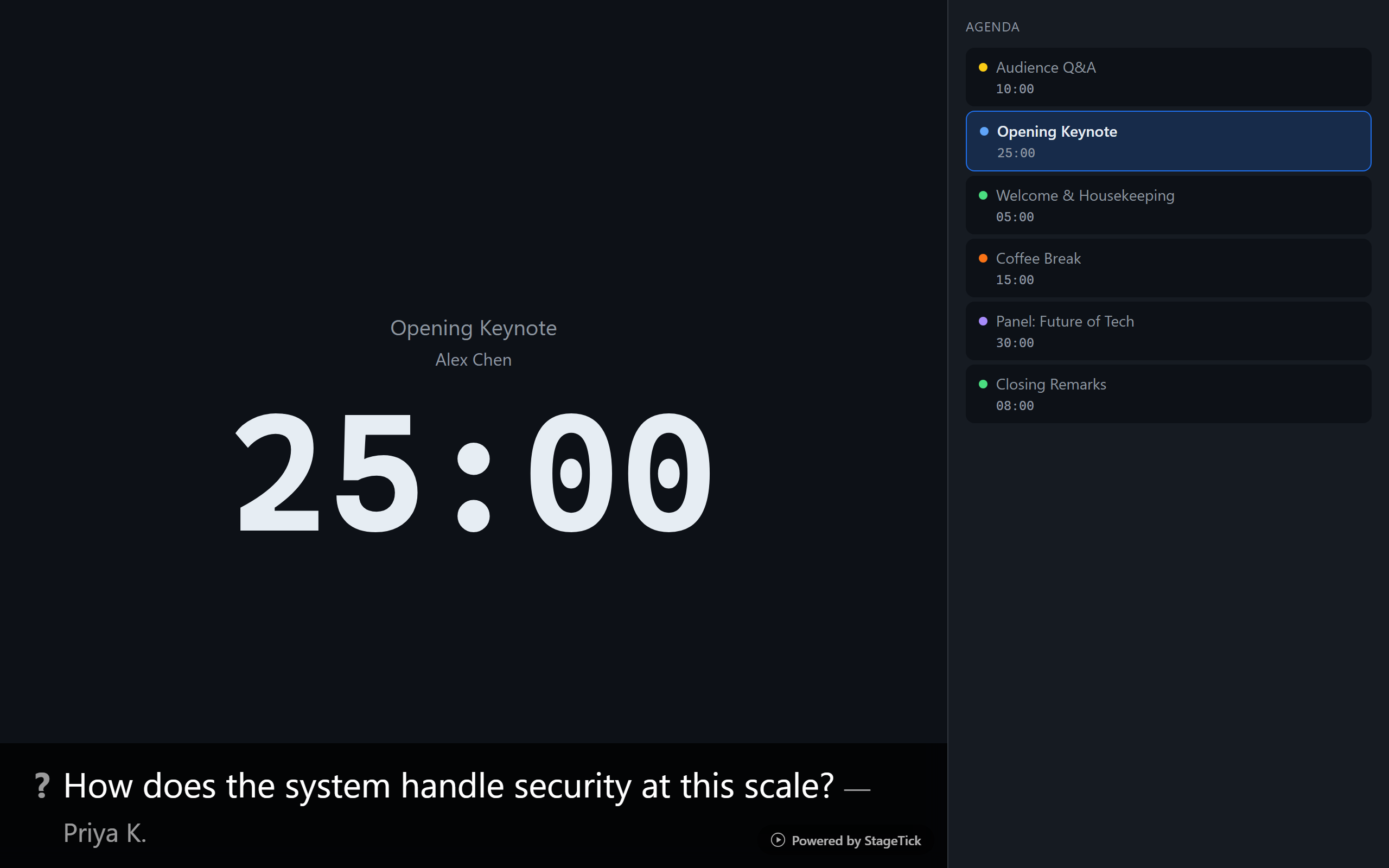
What the Viewer Shows
The Viewer presents two main areas: a large countdown timer on the left (or center) and an agenda sidebar on the right. This split layout gives speakers and audiences both the current time remaining and a clear picture of what comes next.
Use Cases
- Audience-facing confidence monitor at the front of the room
- Speaker podium screen showing time remaining and upcoming segments
- Back-of-house display for crew awareness
- Remote speaker view shared via screen share
Layout
The main area of the screen shows the active timer with its title, speaker name, and large countdown time. The right sidebar lists all timers in your room as an agenda, with the currently active timer highlighted.
Timer Display
The countdown is displayed in large, highly readable text. Above the time, the timer title and speaker name are shown so the audience always knows which segment is active.
Phase Colors
As the timer progresses through its phases, the display changes color to indicate urgency. When the timer goes into overtime, the display turns red to clearly signal that the segment has exceeded its allotted time.
Agenda Sidebar
The sidebar shows all timers in order. The active timer is highlighted so the audience can see where the event stands at a glance. Upcoming and completed timers are displayed in a muted style.
Standby Screen
When the room is not on-air, the Viewer shows a standby screen instead of the timer. This provides a clean holding state before your event begins.
Question Overlay
When a moderator marks a question as live, it appears at the bottom of the Viewer as an overlay. This lets the audience see which question is currently being addressed.
Powered by Badge
On the free tier, a small "Powered by StageTick" badge is shown on the Viewer. Upgrading to a paid plan removes this branding.