Cue Messages
Cue messages are short, real-time text notifications that appear on output screens. Use them to communicate silently with presenters on stage — without the audience noticing.
What are cue messages?
During a live event, you often need to tell a speaker to wrap up, announce a schedule change, or signal a transition. Cue messages let you send these instructions directly to the Viewer, Fullscreen, and Moderator output screens in real time — no walkie-talkie required.
Creating a message
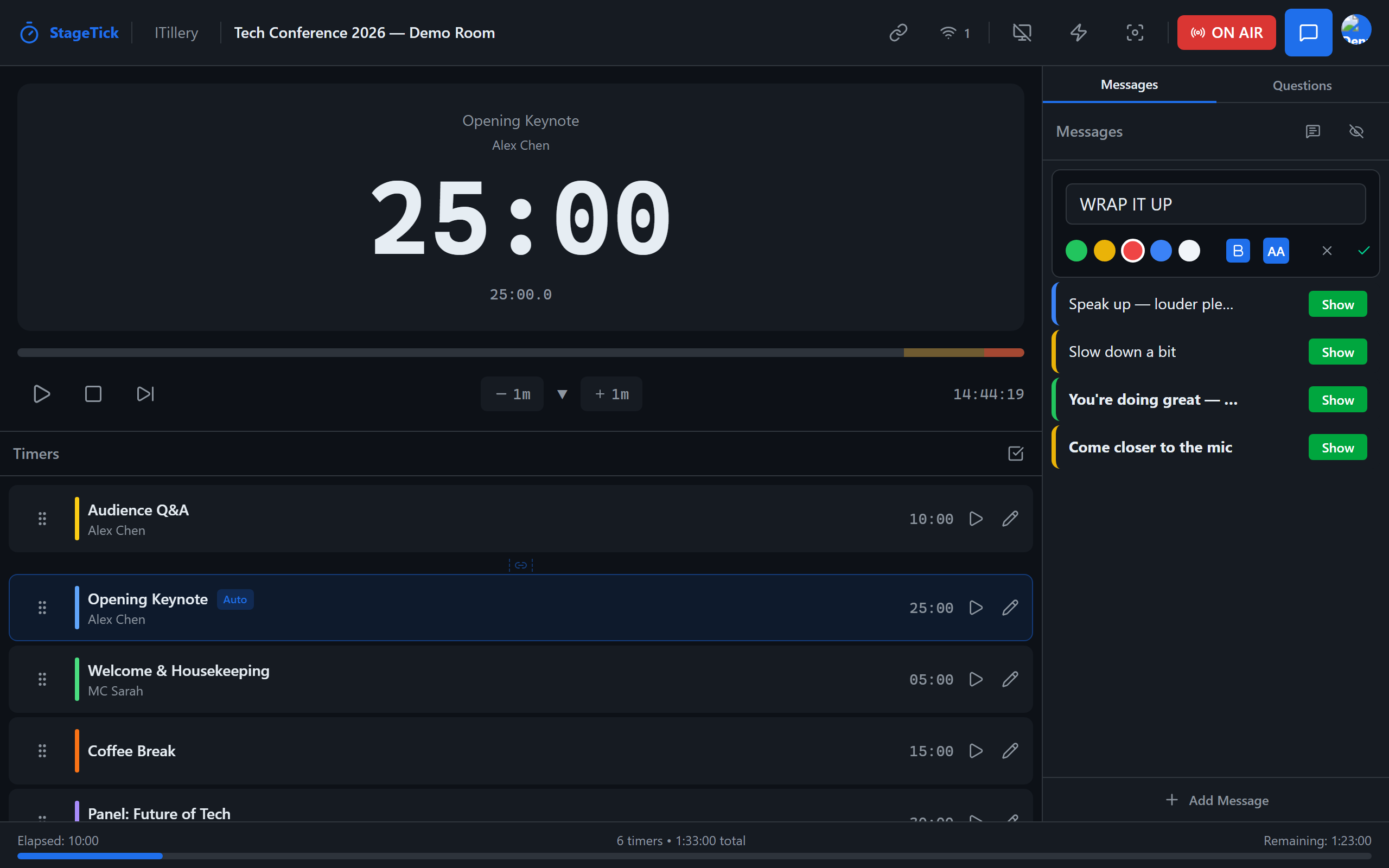
In the Controller view, open the Messages panel from the sidebar. The panel header includes a Viewer Messages toggle to control whether messages are visible on output screens. To create a new cue message:
- Click New Message.
- Enter the message text.
- Choose a color for the message.
- Optionally toggle Bold or Uppercase formatting.
Color options
Messages can be displayed in one of five colors to convey urgency or meaning:
- Green — positive cues, go ahead
- Yellow — caution, time warnings
- Red — urgent, stop immediately
- Blue — informational
- White — neutral, default
Formatting
Each message has two optional formatting toggles:
- Bold — makes the text thicker for better readability at a distance.
- Uppercase — converts the entire message to uppercase for emphasis.
Showing and hiding messages
To display a message on the output screens, click the eye icon next to the message. Only one message can be visible at a time — showing a new message automatically replaces the current one.
To hide the active message, click the eye icon again or use the Hide All button.
Where messages appear
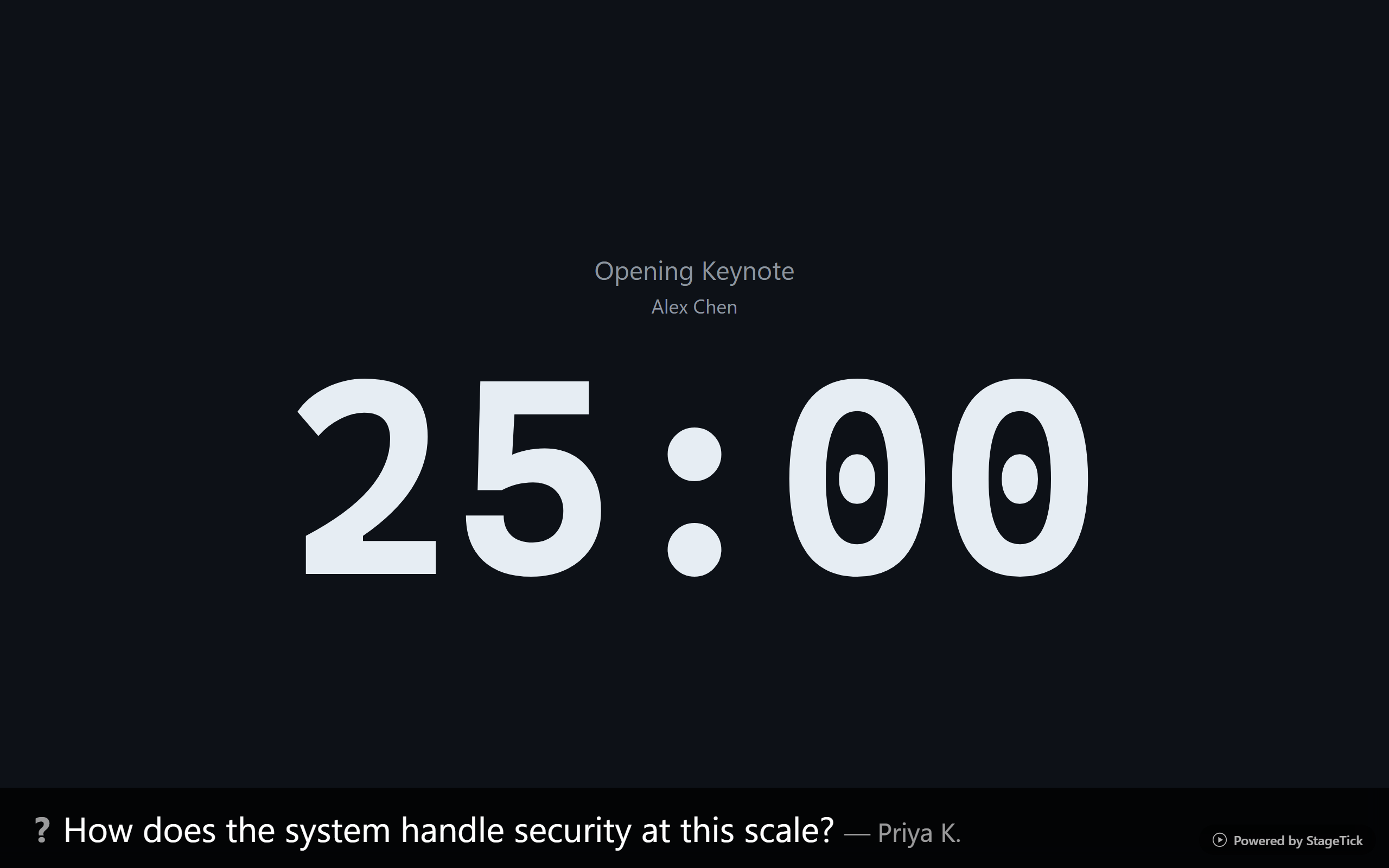
Active cue messages are displayed on the following output views:
- Viewer — overlay on the standard timer view
- Fullscreen — large overlay visible from stage
- Moderator — preview alongside timer information
Editing and deleting messages
You can edit a message's text, color, or formatting at any time by clicking on it in the Messages panel. To delete a message, open the message and click Delete. If the message is currently visible, it will be hidden automatically when deleted.
Message limits
| Plan | Messages per room |
|---|---|
| Free | 5 messages |
| Pro | Unlimited |
Dynamic Placeholders
Messages support dynamic variables that are resolved in real time based on the current, next, and previous timers. This lets you create reusable templates like "Next up: $NEXT_TITLE".
| Placeholder | Resolves to |
|---|---|
| $CURRENT_TITLE | Title of the active timer |
| $CURRENT_SPEAKER | Speaker of the active timer |
| $CURRENT_DURATION | Formatted duration of the active timer |
| $NEXT_TITLE | Title of the next timer |
| $NEXT_SPEAKER | Speaker of the next timer |
| $NEXT_DURATION | Formatted duration of the next timer |
| $PREV_TITLE | Title of the previous timer |
| $PREV_SPEAKER | Speaker of the previous timer |
Auto-Resize
Messages automatically scale their font size to fill the available screen space. Short messages appear large and bold; longer messages shrink to fit. This happens on all output views — no manual font size adjustment needed.
Common cues
Here are some frequently used cue messages to get you started:
- "Please wrap up"
- "5 minutes remaining"
- "Next up: $NEXT_TITLE with $NEXT_SPEAKER"
- "Q&A is now open"
- "Thank you, $CURRENT_SPEAKER!"
$NEXT_TITLE to make templates that work for any segment.