Your first show in 10 minutes
This guide takes you from a new account to a running show: create a room, add timers, put the right view on each screen and go on air.
1. Create your account
Open the sign-up form at app.stagetick.io (on the sign-in page: Don't have an account? Sign up). Enter your name, email address and one password with at least 6 characters (Show password reveals it), tick the boxes for the Terms of Service and the Privacy Policy and click Create account. You can also use Sign up with Google once both boxes are ticked.
Accounts with email and password must confirm the address first. StageTick emails you a verification link and shows Verify your email until you have clicked it. Then choose I've verified my email. Nothing arrived? Check your spam folder and use Resend verification email (available again after 60 seconds). Google accounts skip this step. More in Account & sign-in.
2. Create a room
On the dashboard, click New Room (on a phone: New). StageTick creates an "Untitled Room" and opens its Controller, the view you run the show from. Click the room title in the header to rename it. On your very first visit a short introduction appears; its last button, Create Your First Room, does the same. The Free plan includes 3 rooms.
3. Add timers
In the empty room, click Add your first timer; after that, Add Timer below the timer list adds one timer per segment of your show. The editor opens each time: set Title, Speaker and Duration. Wrap-up and Danger decide when the clock changes to its warning and danger colours. The key N adds a timer at the end of the list; double-click a timer to edit it.
To let a timer start by itself when the one before it ends, set its trigger to After previous ends. The Free plan allows 6 timers per room. Details: Managing timers and Timer triggers.
4. Open your screens
Click the link icon Output links in the Controller header (on a phone it is under ⋮ More controls). Every link can be copied or opened. Open one link per screen:
| Link | Use it for | Sign-in |
|---|---|---|
| Fullscreen | Big timer for the stage monitor or projector | Not needed |
| Viewer | Timer with the running order, for example on a confidence monitor or the speaker's tablet | Not needed |
| Agenda | Running order for the crew | Not needed |
| Operator | Simplified remote control for a phone or tablet | Signed-in member of your organisation |
| Moderator | Timer, cue messages and (Pro) audience questions for the moderator | Signed-in member of your organisation |
The Controller link itself also needs a signed-in member. On the Free plan your organisation has 1 member — you. To use the Operator or Moderator view on a second device, sign in there with your own account. If that device has already shown a Viewer, Fullscreen or Agenda screen or the demo, StageTick does not ask you to sign in; see Room access could not be confirmed. See also Team, roles & invitations and Sharing rooms.
5. Check your devices
The connection badge (Wi-Fi icon with a number) in the Controller header counts every open view of this room, including your own Controller tab. Click it to see each device. A room allows 5 devices on Free, 25 on Pro and 100 on Enterprise; the audience question page does not count. Add ?name=Stage%20Left to a link to give that screen a name in the list (Connections). If a screen shows "Room is full", see Troubleshooting.
6. Go on air
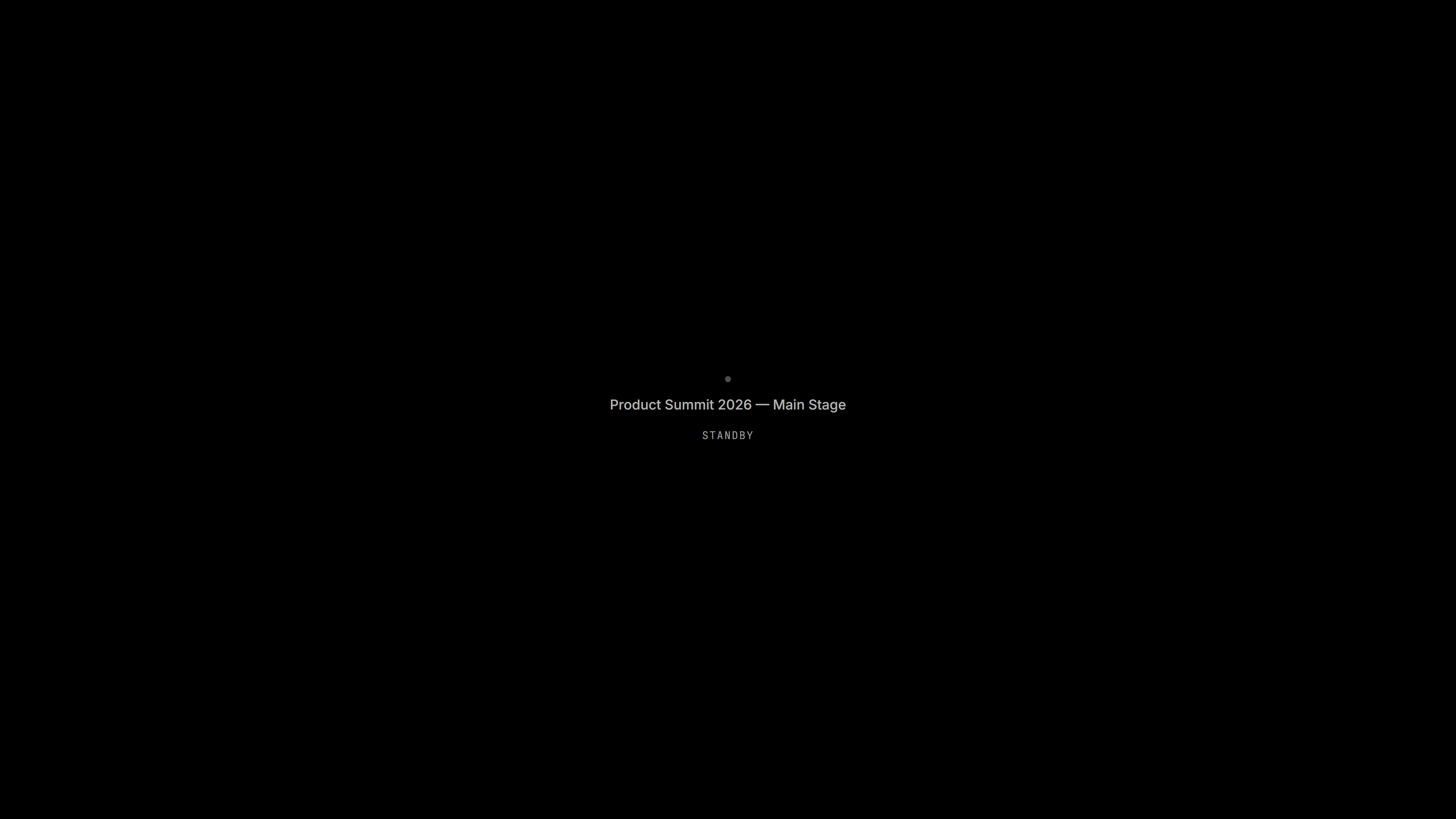
Until you go on air, Viewer and Fullscreen show a black Standby screen with your room title. Click ON AIR in the Controller header — the button turns red and the timers appear. Click it again to go off air. On narrow phone screens the button shows only its icon.
7. Run the show
- Space plays and pauses. With no active timer it starts the first one.
- Ctrl+→ jumps to the next timer.
- B blacks out the audience screens (Viewer, Fullscreen, Agenda and Moderator) and brings them back.
- M mutes or unmutes sound cues on this device.
Timers set to After previous ends start by themselves. The shortcuts work in the Controller only; see Keyboard shortcuts and The Controller.
8. Cue your speaker
Click the speech-bubble button (Toggle messages) in the header to open the messages panel. Add a message, then click Show to put it on the screens. Fullscreen and Moderator show it right away; the Viewer only while Show messages on viewer (the message icon at the top of the panel) is switched on. The Free plan allows 5 messages per room. Details: Cue messages.
9. After the show
To keep a copy of your rundown, choose Export in the room menu (your avatar, top right). JSON export works on every plan. See Import / Export.
Try it without an account
Open app.stagetick.io/demo. StageTick signs you in as a guest and opens a sample room, "StageTick Demo Room", with four timers and three cue messages. The demo runs on the Free plan, so Pro features stay locked.
- The guest session lives in this browser. Come back later in the same browser and you return to the same demo room.
- The demo runs as a guest: you get the Controller and all output views, but no dashboard or settings.
- Rooms from the guest demo can't be moved to an account, and you lose access to them once you sign up or sign in. To keep a room, create a free account and set it up there.
- If you are already signed in, the demo room is created in the organisation currently open on your dashboard and counts toward its room limit. If you have opened the demo before with this account, StageTick opens your existing demo room instead.
Next steps
- Output views — which view belongs on which screen
- Team, roles & invitations — bring your crew in (Pro)
- Plans & limits and Billing & subscription
- Troubleshooting — what a message in the app means and what to do