Moderator
The Moderator view is purpose-built for show callers and producers who need to control on-screen messages and manage audience Q&A without direct access to timer management.
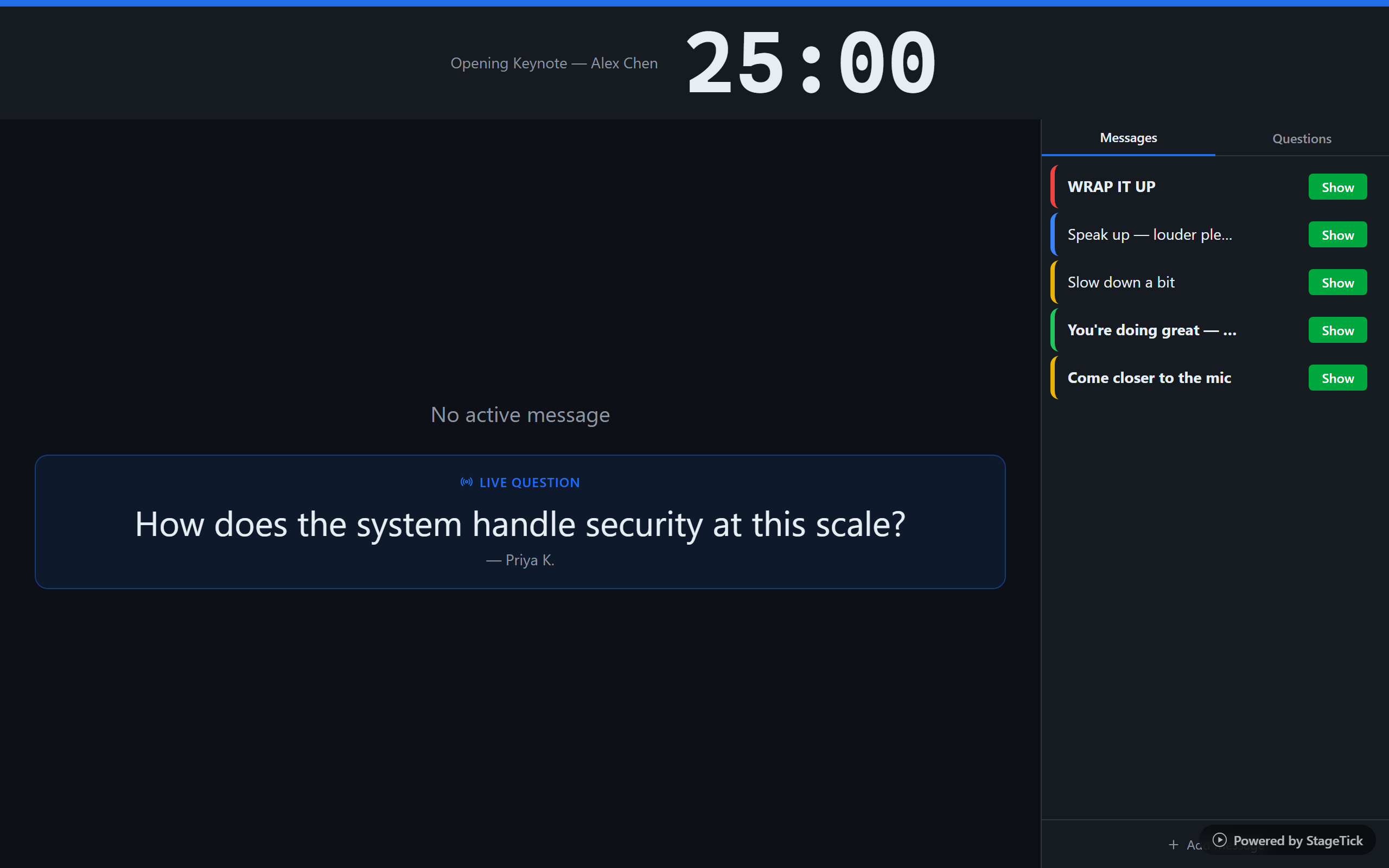
Layout
The Moderator view is organized into three areas: a top timer bar, a left preview panel, and a right control panel. This split layout lets you see what the audience sees while managing content at the same time.
Top Timer Bar
The top bar shows the active timer name, speaker, and countdown at a glance. This keeps the moderator aware of timing without needing a separate display.
Left Panel: Live Previews
The left side of the screen shows live previews of what is currently displayed on output views:
- Message preview — see the currently visible message as it appears on stage
- Question preview — see the live question currently shown to the audience
Right Panel: Control Tabs
The right side provides tabbed controls for managing messages and questions.
Messages Tab
The Messages tab gives full control over on-screen cue messages:
- View all messages in a scrollable list
- Add new messages with custom text
- Edit existing messages inline
- Delete messages you no longer need
- Toggle message visibility on/off to show or hide from outputs
Message Editing
Each message can be customized with:
- Text — the message content displayed on outputs
- Color — choose from 5 color options for visual differentiation
- Bold — toggle bold formatting for emphasis
- Uppercase — toggle uppercase for high-visibility messages
Questions Tab
The Questions tab manages the audience Q&A workflow:
- View the pending question queue as submissions arrive
- Press "Go Live" to display a question on all output views
- Remove questions from the queue with the delete button
Progress Bar
A progress bar at the bottom of the view tracks the active timer, giving the moderator a passive sense of timing without needing to watch the countdown closely.