Creating a Room
A room is your workspace for a single event. It holds all your timers, messages, and settings in one place and gives you a shareable URL that your team can open in any browser.
Creating a room from the dashboard
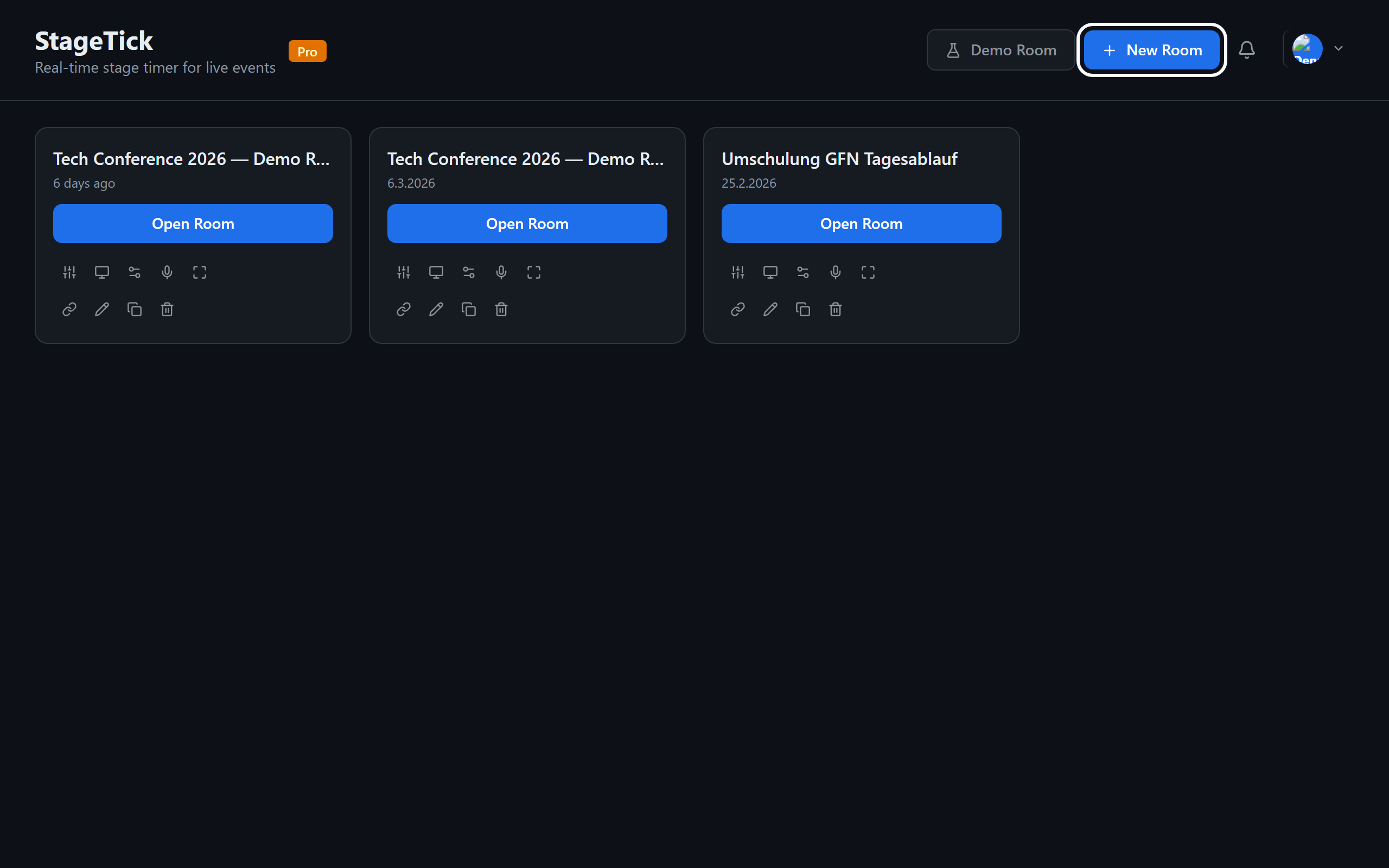
After signing in, the dashboard shows all your rooms. To create a new one:
- Click the New Room button in the top-right corner of the dashboard.
- Enter a title for your room (e.g., "Annual Conference 2026").
- The room is created instantly and you are taken to the operator view.
Room title and settings
You can rename a room at any time by clicking the room title in the dashboard and typing a new name. The title is visible to everyone connected to the room.
Room-level settings — such as timer defaults, display preferences, and sharing options — are configured from within the room itself via the operator view.
Room URL structure
Every room has a unique URL based on its ID:
This base URL opens the default view. You can append a view type to open a specific output view directly:
/r/:roomId/viewer— Viewer (clean countdown)/r/:roomId/fullscreen— Fullscreen output/r/:roomId/moderator— Moderator view/r/:roomId/operator— Operator view
Deleting a room
To delete a room, open the room menu on the dashboard and select Delete. You will be asked to confirm. Deleting a room removes the room and its transport data permanently.
Room limits per plan
| Plan | Rooms |
|---|---|
| Free | 3 rooms |
| Pro | Unlimited |